How to Use Virtual DJ’s Built-In Live Broadcasting
Everyday for the last week in COVID-19 quarantine, I have been doing a livestream broadcast on both Instagram & Facebook simultaneously. A lot of viewers have admired my video output screen, so I wanted to share with everyone how I do this Coronavirus live DJ broadcast! The answer is that it’s a regular, free feature on the Virtual DJ software, which is my preference over both Serato & Rekordbox. So how do you use Virtual DJ’s built-in live video broadcasting?
Start by watching this brief video showing you what my livestream studio looks like behind-the-scenes and what the end result is on both Instagram & Facebook. I am a full-time mobile DJ & have simply used the gear I already had on hand (I did not purchase any sort of iRig or something similar).
CONFIGURE YOUR VIRTUAL DJ VIDEO SETTINGS
I highly recommend watching the videos in Virtual DJ’s “Tutorials” tab called”Full Screen Video” then “Facebook Broadcast.”
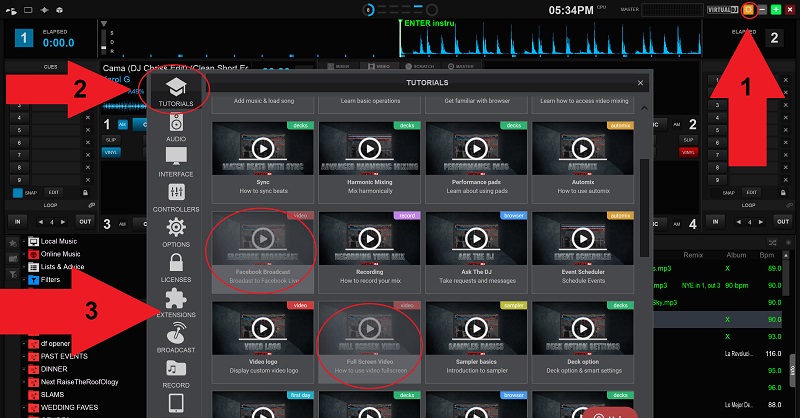
Now…from the main Virtual DJ screen, click on the video mixer tab in the center (I use the V8 but by FRUiT skin for Virtual DJ in case you don’t immediately recognize it as VDJ).
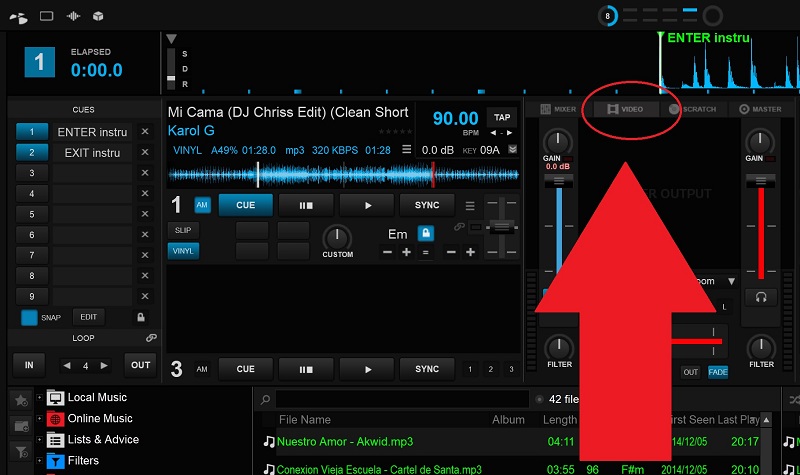
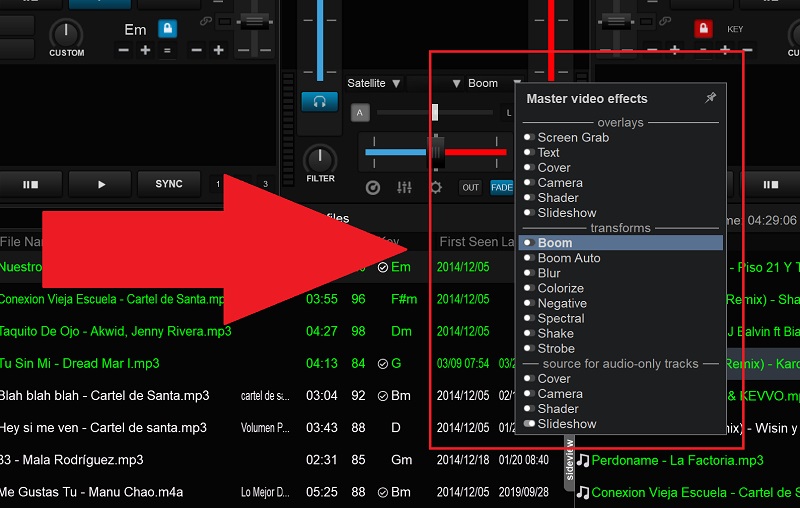
- Video > Boom (Master Video Effects) > Pick overlay/transforms/source. Click the small left circle to enable any effect. To adjust that effects settings, click on the small gear to the left of the effect.
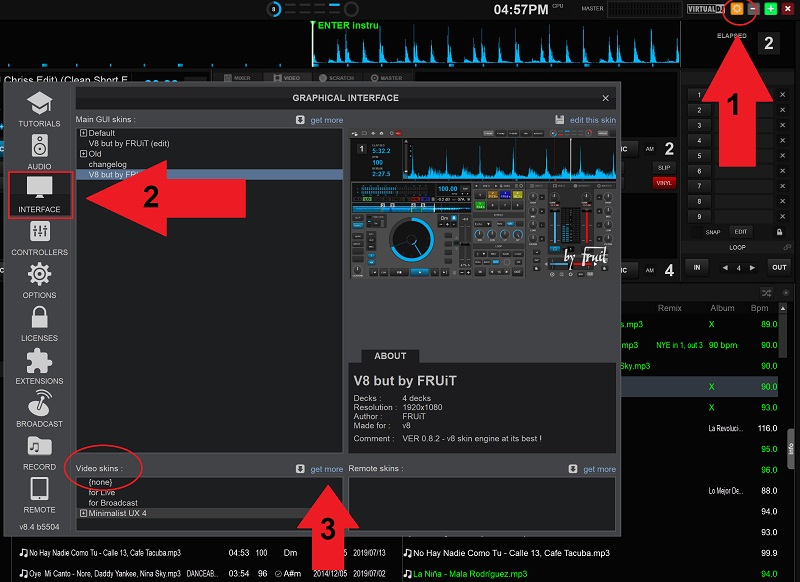
- Additional video skin options: Gear icon > Skins > Video output > Pick a skin & click “install” > return to main setting page > Interface > Video Skins > Click on the one you just downloaded. In the video above, I’m using “Minimalist.”
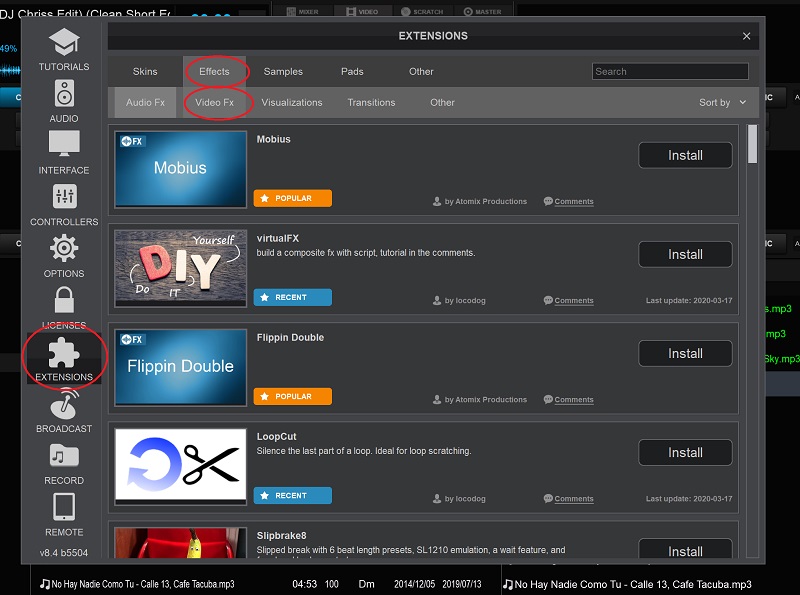
- Additional video effects: gear icon > Effects > Video FX > Pick an effect (or 2) & click “install.”
ADD YOUR LOGO TO THE SCREEN
You’ll want to remove Virtual DJ’s logo and replace it with your own. This is easy (assuming you have a copy of your logo with a transparent background).
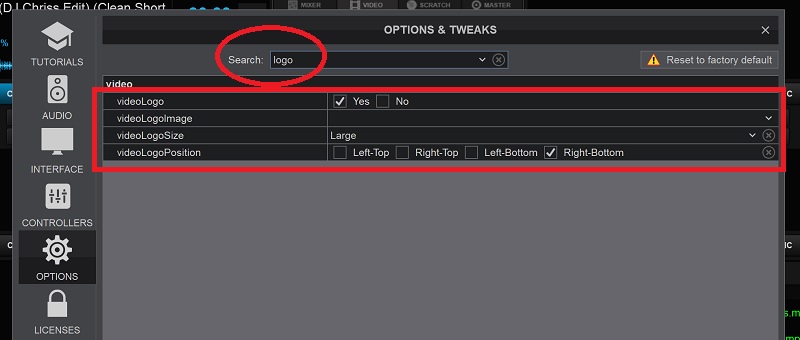
- Set up your logo: Gear icon > Options > Type “logo” in the search bar > Click on the drop down arrow next to “VideoLogoImage” > Select your logo file > Then choose your logo size & position. I use large/top left.
IF YOU HAVE MUSIC VIDEO FILES…
Drag the music video file to Side A or B & hit play–the audio will play & the video will display automatically. Easy-peasy!
IF YOU DO NOT HAVE MUSIC VIDEOS…
I’m not a VDJ, I’m just trying to have a nice livestream show during the Coronavirus quarantine. If you, like me, have no music video files, no worries.
- Choose the following “Overlay” in Master Video settings: Shader (built-in visuals will play…like a screen saver) > Cover (album cover art for the song playing will be shown–beware you may get many boring BPM Supreme or DMS logos) > Slideshow
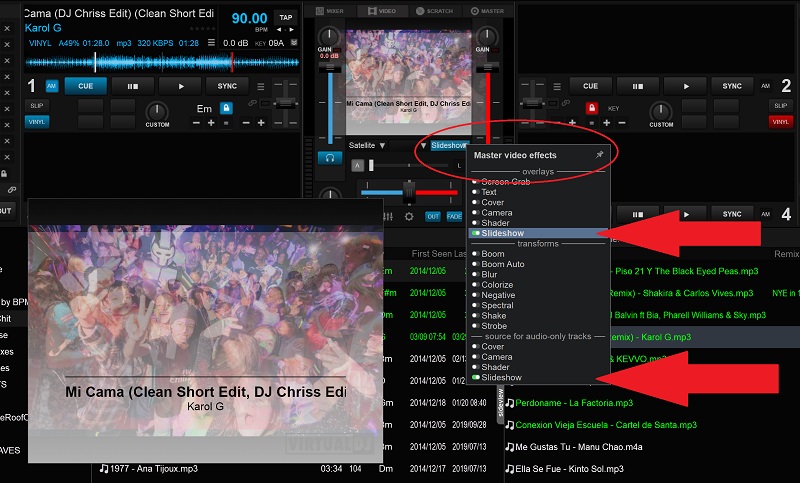
NOW, SET UP YOUR VIRTUAL DJ LIVESTREAM BROADCAST
Virtual DJ offers direct live broadcasting to Facebook, YouTube, Periscope, Twitch, Vimeo, & Musically. You can also manually configure others. Here I’m going to walk you through all but Vimeo & Musically. For most of us, Facebook is the top choice simply because that is where we’ll get the most friends and family watching our DJ set broadcast. Twitch is primarily known for being a site where gamers broadcast their video game playing live. Yes, you can broadcast with little hassle regarding copyrighted music there, but if your following is not already there, it might be pointless. YouTube seems to have the strictest copyright pushback and generally typically low viewership (unless you regularly go live on YouTube and have already built-up a following). Periscope is Twitter’s live video platform, and most DJs don’t have big Twitter followings. Below are my tips for throwing the “copyrighted music” goblins off your scent.
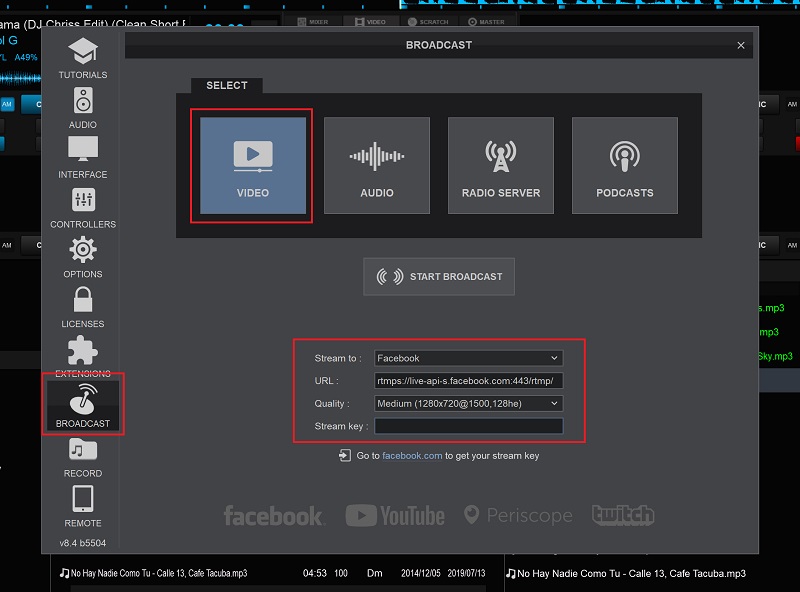
CONFIGURING A VIRTUAL DJ LIVE FACEBOOK BROADCAST
- Gear icon > Broadcast > Video (you do have audio only, podcast, and radio options as well) > Stream to (select Facebook from the drop down) > Click the link on the bottom where it says “Go to Facebook.com to get your stream key.” > In the new pop-up window, click “Create live stream” > On the right it says “Stream Key,” click the blue “copy” button next to it. > Back on the Broadcast screen of VDJ, paste the stream key. > Click “Start Broadcast” in the middle of the VDJ Broadcast page. If successful, it will say, “Video broadcast started.” Nothing is live on Facebook yet though. > Back on the Facebook livestream page, you should see your video playing in the corner. > On the left under “Post,” choose whether to broadcast on your personal page, a page you manage, or in a group. Below that, give your video a title or add a comment (such as, “I do not own the rights to this music,” or “Parental Advisory (Explicit Lyrics).” > Click the blue “go live” button in the bottom left corner & your VDJ video screen with audio will start livestreaming.
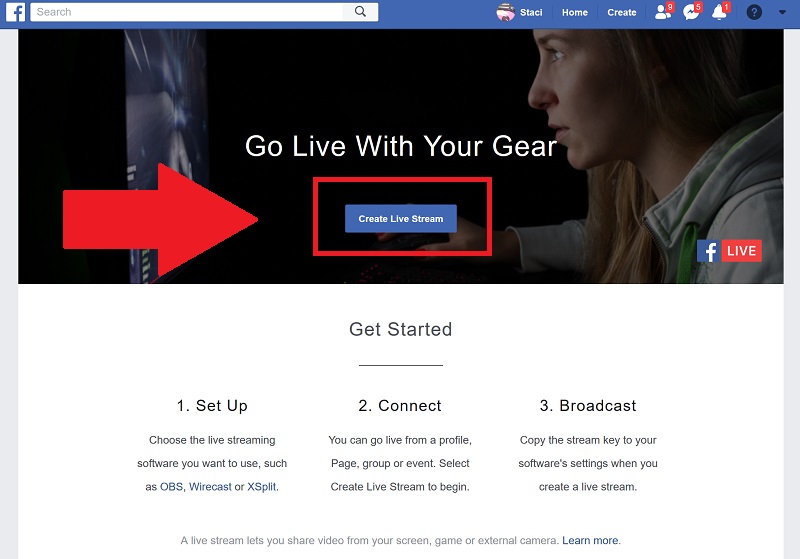
CONFIGURING A VIRTUAL DJ LIVE YOUTUBE BROADCAST
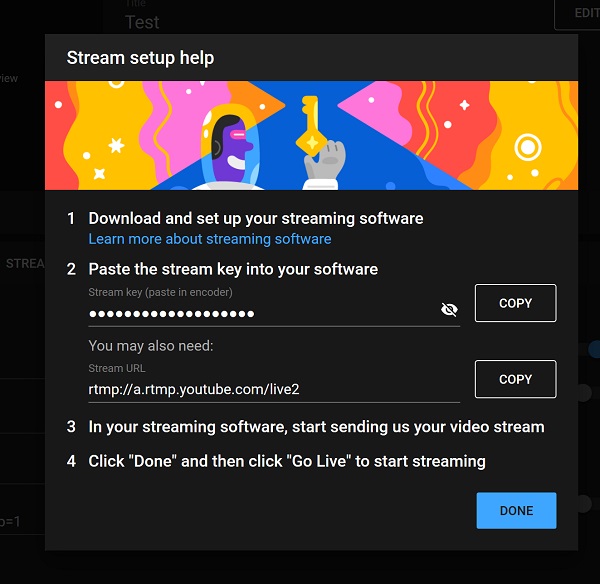
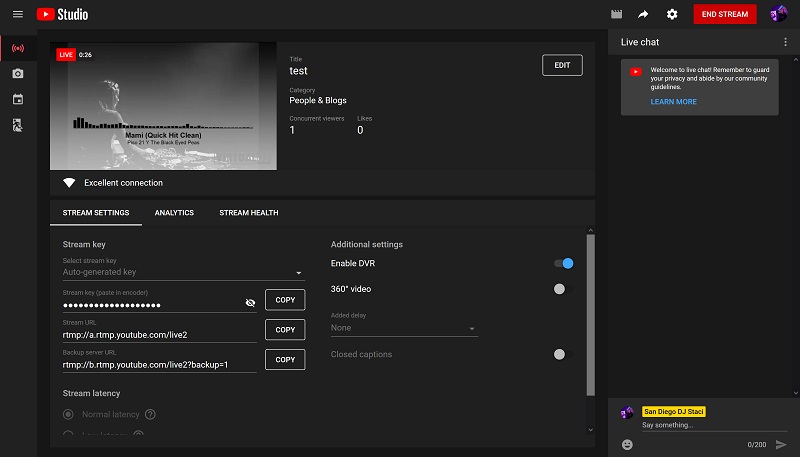
- Gear icon > Broadcast > Video (you do have audio only, podcast, and radio options as well) > Stream to (select YouTube from the drop down) > Click the link on the bottom where it says “Go to YouTube.com to get your stream key.” > Click the blue “Get Started” button. > Select your country & verify your phone number. > Then you’ll need to wait 24 hours for YouTube to activate your account for livestreaming. > The next day, log into YouTube’s “Virtual Control Room” > Stream (left side) > Provide a “title,” pick an audience, and mark if it’s for kids > click “Create Stream” button > Copy the “stream key” back to Virtual DJ & “Start Broadcast > Back on YouTube, click “go live” in the top right.
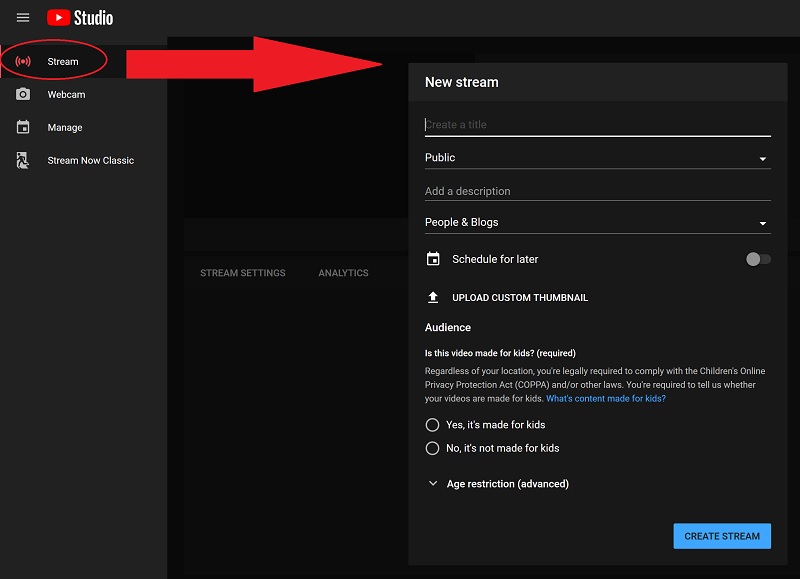
CONFIGURING A VIRTUAL DJ LIVE PERISCOPE (TWITTER) BROADCAST
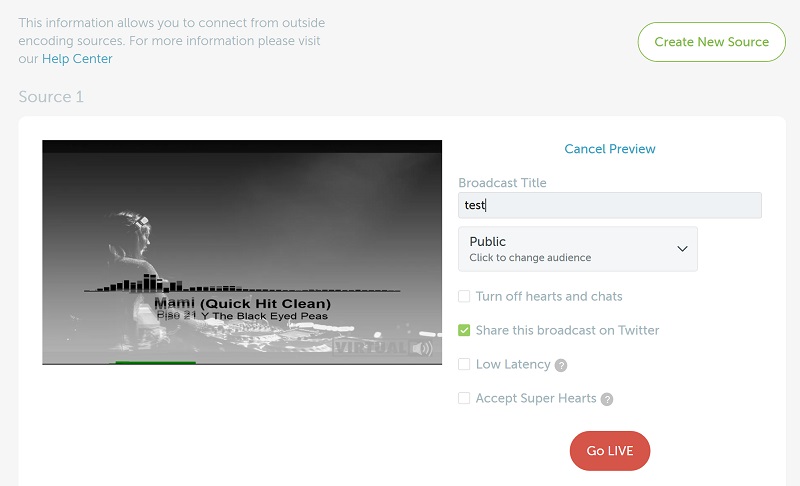
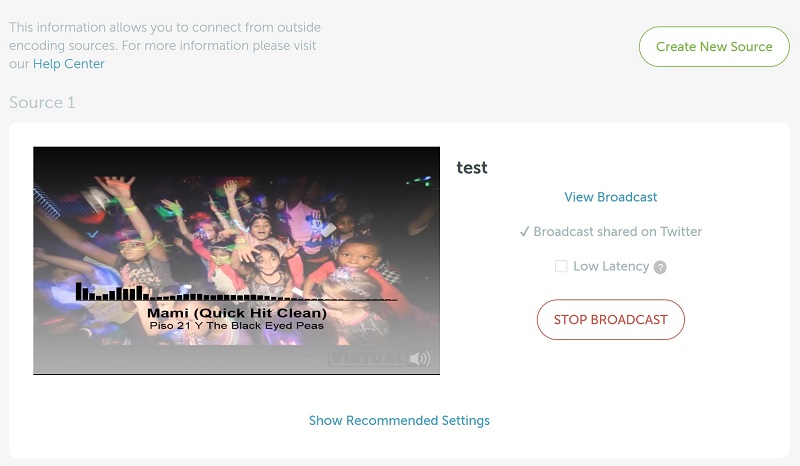
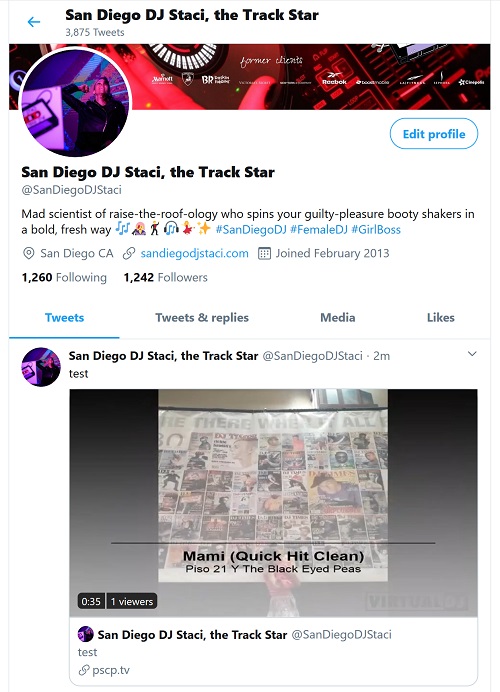
- Gear icon > Broadcast > Video (you do have audio only, podcast, and radio options as well) > Stream to (select Periscope from the drop down) > Click the link on the bottom where it says “Go to Periscope.tv to get your stream key.” > Create an account > Click the green “Create New Source” button. > Copy the stream key to VDJ > Click “Start Broadcast” in the middle of the VDJ Broadcast page. If successful, it will say, “Video broadcast started.” Nothing is live on Periscope yet though. > On the Periscope screen, give your broadcast a name & select your audience. > Click the red, “Go LIVE” button. > At the end of your DJ set, return to Periscope & click, “Stop broadcast.” Your live Periscope video will also appear on your Twitter feed. > Return to VDJ’s broadcast tab & click the button in the middle to stop the broadcast.
CONFIGURING A VIRTUAL DJ LIVE TWITCH BROADCAST
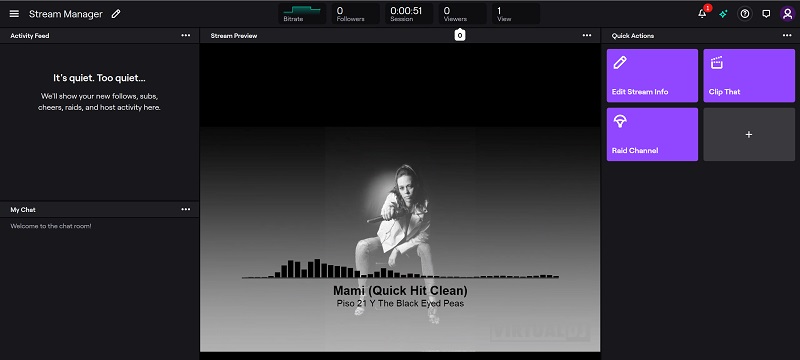
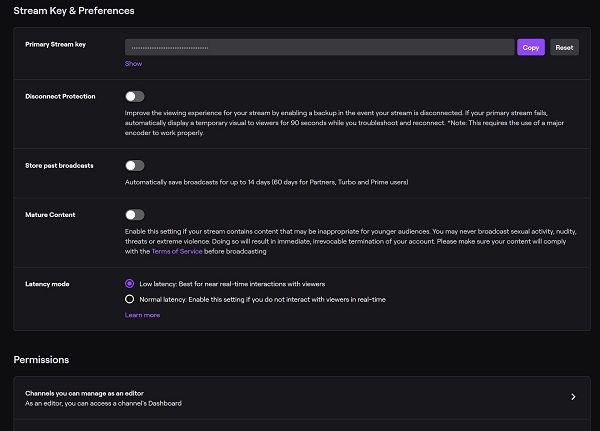
- Gear icon > Broadcast > Video (you do have audio only, podcast, and radio options as well) > Stream to (select Twitch from the drop down) > Click the link on the bottom where it says “Go to Twitch.tv to get your stream key.” > Create & verify your Twitch account > Return to the Twitch link provided by VDJ & copy the “Primary Stream Key.” > Paste it into VDJ’s broadcast screen. > Click “Start Broadcast” in the middle of the VDJ Broadcast page. If successful, it will say, “Video broadcast started.” Unlike the other apps, you are now live. You do not need to return to Twitch & click anything. > At the end of your DJ set, click, “Stop broadcast” on VDJ’s broadcast screen.
TIPS FOR DJing COPYRIGHTED MUSIC LIVE
Think about whatever you can do to make the music not “Shazam-able.” Play each song 5-10 BPM faster than it really is. Play mash-ups. Play heavily remixed versions. Use effects and scratching. Talk to the camera. Clap. Staying away from super popular music also helps. Finally, you need to quickmix–play one verse & switch up the song! Using these guidelines, I have yet to get one of my broadcasts stopped and many of them I’m able to re-post to my Instagram story or my Facebook page (without muting).

Post a Comment
You must be logged in to post a comment.